Expense Claims
The Expense Claims module allows employees to submit business expense reimbursement requests with receipt uploads and multi-stage approval.
Required Plan: Pro or Premium
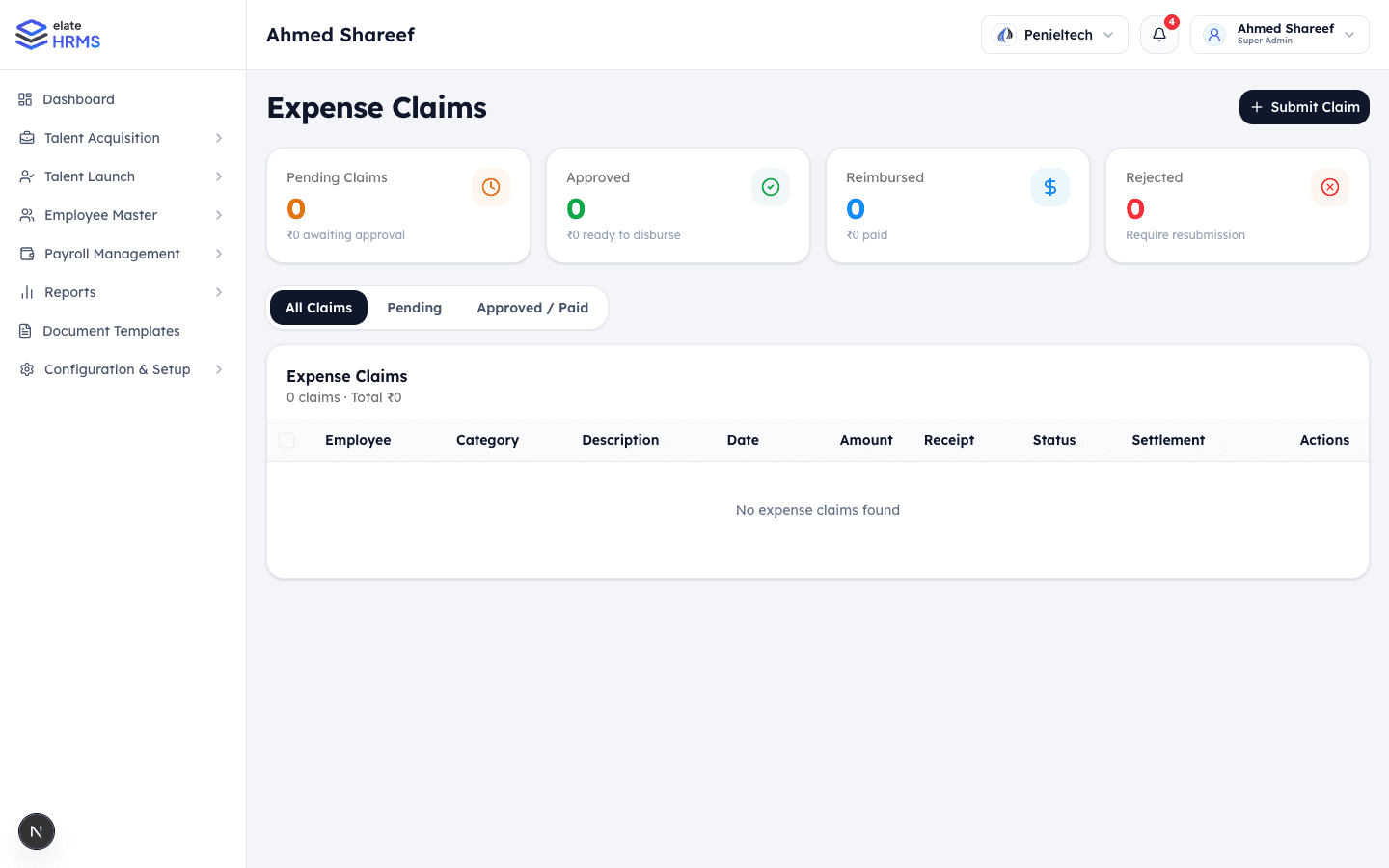
Dashboard
The Expense Claims page shows:
- Pending Claims — Awaiting approval with total amount
- Approved — Ready to be disbursed
- Reimbursed — Amount paid to employees
- Rejected — Claims requiring resubmission
Expense Categories
Configure categories under Configuration & Setup → Payroll Management → Expense Categories:
- Travel
- Meals & Entertainment
- Office Supplies
- Training & Development
- Communication
- Custom categories
Submitting a Claim
- Navigate to Expense Claims
- Click + Submit Claim
- Fill in the claim details:
- Category (from configured categories)
- Description of the expense
- Date of expense
- Amount
- Upload receipt/proof
- Submit for approval
Approval Workflow
- Employee submits claim → Status: Pending
- Manager/HR reviews the claim
- Approved → Claim moves to disbursement queue
- Rejected → Employee notified with reason, can resubmit
- Reimbursed → Amount processed (can be included in next payroll run)
Tabs
| Tab | Description |
|---|---|
| All Claims | Complete list of expense claims |
| Pending | Claims awaiting approval |
| Approved / Paid | Approved and reimbursed claims |
Settlement
Approved expense claims can be:
- Included in the next payroll run as a reimbursement
- Settled separately outside of payroll
- Settlement status is tracked per claim
Last updated on