First Login
After completing your subscription setup, you can log in to your Elate HRMS workspace.
Logging In
- Navigate to the login page
- Enter your email and password
- Click Sign In
You’ll be taken to the Operations Overview dashboard.
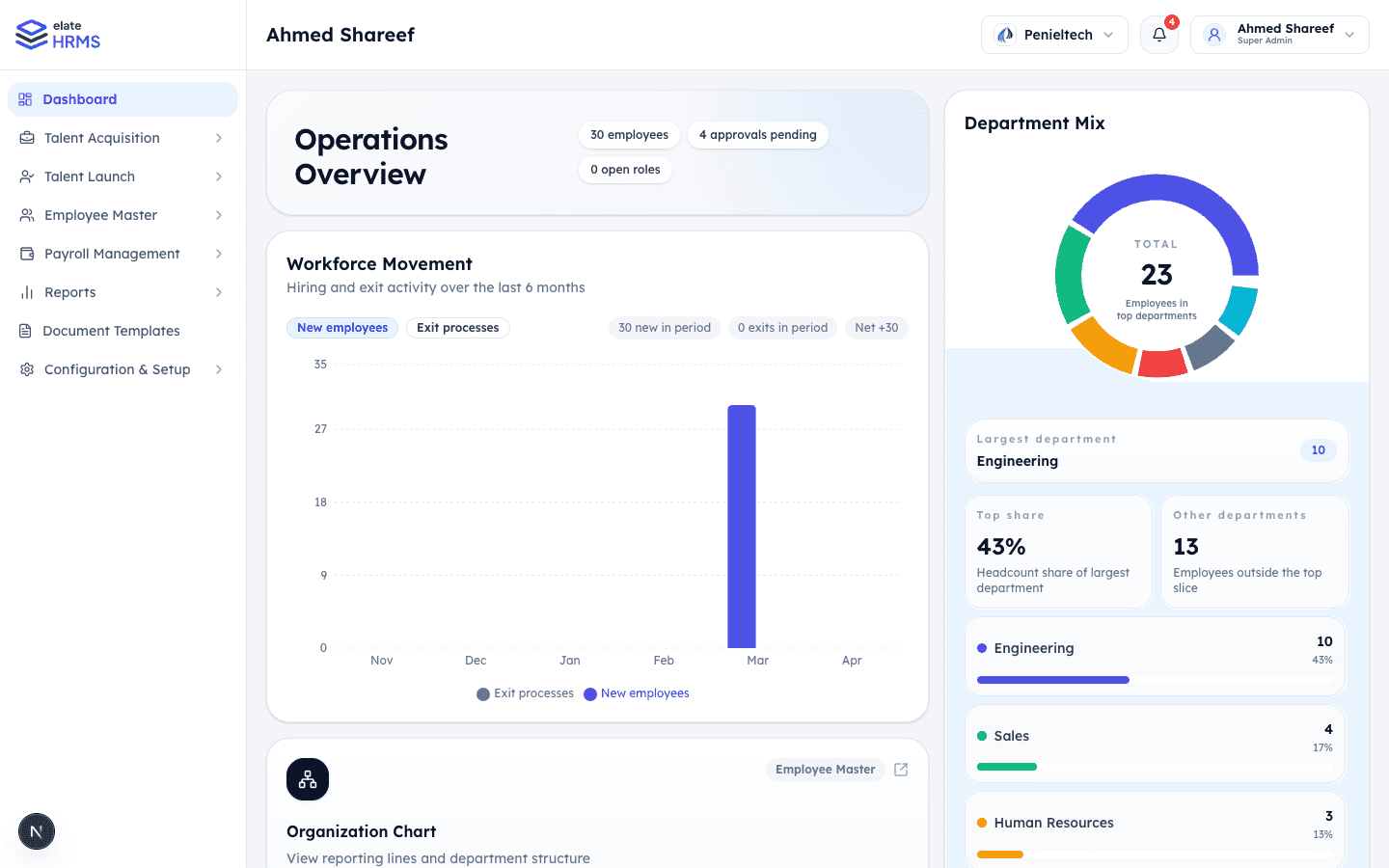
Dashboard Overview
The main dashboard gives you an at-a-glance view of your organization:
Operations Overview
- Total employees count
- Pending approvals (leave, WFH, regularization)
- Open positions from recruitment
- Workforce Movement chart showing new hires vs exits over the last 6 months
Department Mix
- Donut chart showing employee distribution across departments
- Largest department highlight with headcount share percentage
Organization Chart
- Quick access to view reporting lines and department structure
KPI Cards
- Total Employees — Active count across the organization
- Pending Approvals — Leave, WFH, and attendance items needing attention
- Open Positions — Active recruitment roles
- Active Exits — Offboarding workflows in progress
Operational Signals
Live metrics showing:
- Open helpdesk tickets
- Assigned assets
- Active candidates in hiring
- Attrition rate
Team Snapshot
- Active employees
- WFH pending requests
- Regularization pending
- Exits this month
Recent Activity
- Timeline of recent events (new employees joining, status changes, etc.)
Navigation
The sidebar on the left provides access to all modules. As a Super Admin, you’ll see:
- Dashboard
- Talent Acquisition
- Talent Launch
- Employee Master
- Payroll Management
- Reports
- Document Templates
- Configuration & Setup
The sidebar items change based on your role and which modules are included in your subscription plan.
Last updated on